Adding a gateway to kube-vip
So …
That was over a year ago, and well I didn’t write a service mesh (in the traditional sense) although I did write some interesting bits and finally did some MutatingWebHook stuff. With my initial idea being to use sidecars to implement all of the magic proxy stuff. Although I largely ended up getting stuck with some issues around Kubernetes v1.33 and EphemeralContainers which has largely been fixed at this point. So given the Christmas break I decided to have another crack at it!
tl;dr where’s the code -> https://github.com/kube-vip/kube-gateway
kube-gateway (v0.0001)
The architecture for the kube-gateway (today) consists of:
- The gateway watcher
- The proxy
The gateway watcher
This currently is just a pod that has the permissions to watch for pod updates for things such as an IP address has been assigned or that an annotation has been applied. When the correct annotations are applied to a pod then the watcher will modify the pod.Spec, which I hear you cry 😿 is READ-ONLY! This is true (partially), but the read-only sections typicaly mean I can’t add a volume/configmap/secret and that can render it impossible to add things like secrets or sidecars to a pod (at run-time) impossible. However, it turns out that the pod.Spec.EphemeralContainer is read-write so this does provide us with an opportunity to add an additional container although we still can’t add any volumes as they are immutable.
So to get around this the watcher has this snippet of code:
1 | // Create certificates and then a Kubernetes secret |
The watcher itself has it’s own Certificate Authority certs and will use them to create new certificates for the pod (based upon it’s IP address), which are then loaded into a Kubernetes secret. Finally we can reference the secrets inside the EphermeralContainer as environment variables as this is allowed in the Kubernetes spec!
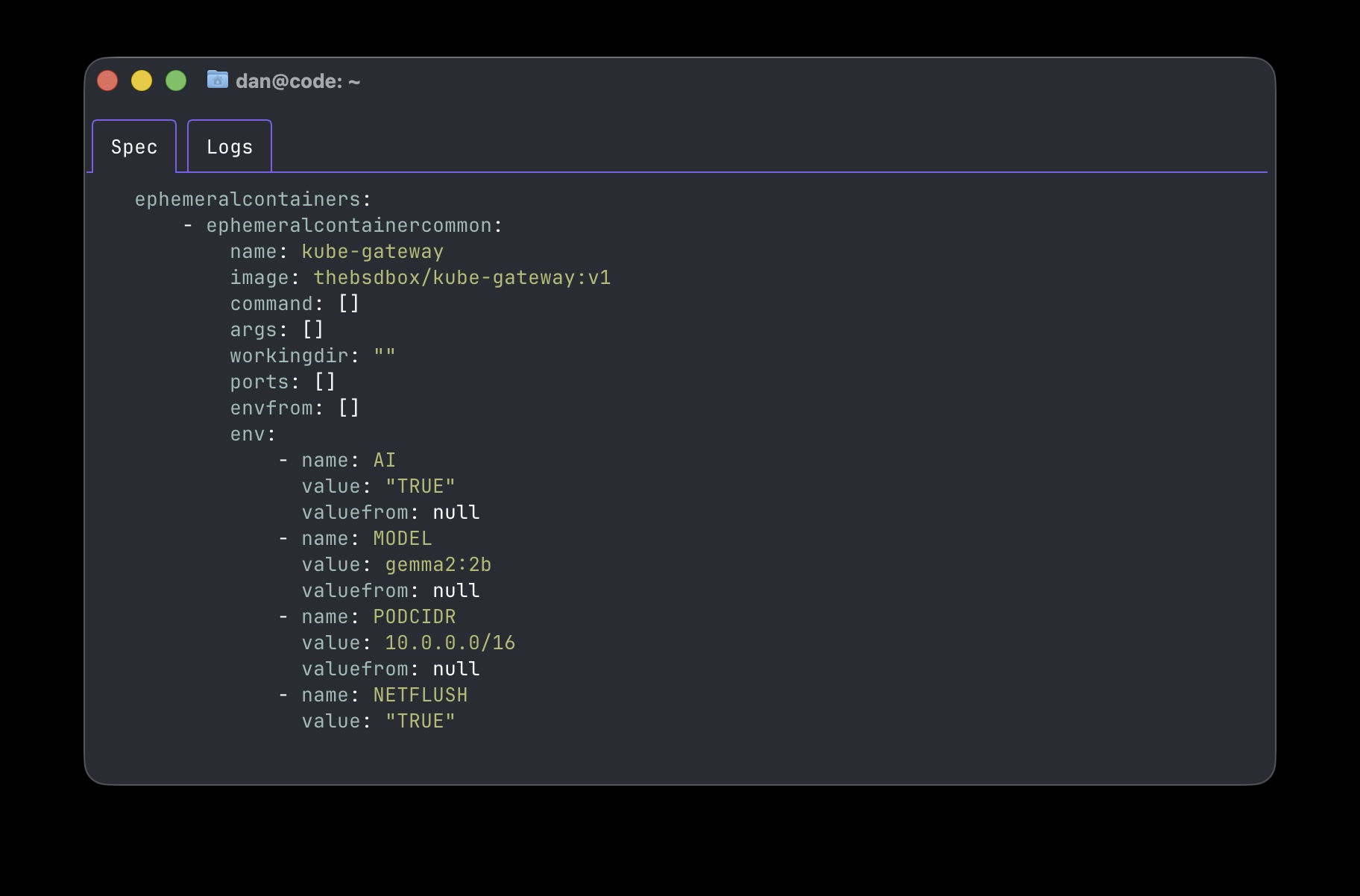
Then the annotations we apply are typically passed to the EphermeralContainer as additional environment variables that the kube-gateway uses!
Annotating your pod for mTLS 🔐
To enable mTLS between two pods we will need to apply a gateway to each pod (to handle the encryption and decryption on either side).
BONUS: If you want to offload the TLS encryption the kube-gateway supports kTLS (in-kernel TLS)!
To enable this then each pod will need the following annotation before enabling encryption:
kubectl annotate pod <pod name> kube-gateway.io/ktls="true"
This is done with the following:
This will apply the gateway to pod-01:
kubectl annotate pod pod-01 kube-gateway.io/encrypt="true"
This will then apply the other gateway to pod-02:
kubectl annotate pod pod-02 kube-gateway.io/encrypt="true"
Annotating your pod for AI 🤖
Annotate your LLM
This is highly experimental at the moment, but the feature set will expand as it is worked on 😀
As of today (15th January 2026) the implementation is expecting your LLM to be running within the cluster somewhere, this is a self imposed limitation of the kube-gateway (and will be changed soon).
A kube-gateway endpoint is required (today) in order to facilitate end-to-end connectivity, we will need to annotate our LLM with a gateway endpoint annotation:
kubectl annotate pod -n ollama ollama-bbbc54cbc-8mqt5 kube-gateway.io/endpoint="true"
Now anything that is interacting with it can be modified with our gateway annotations!
Annotate your AI workloads
Imagine we have some workloads created a long time ago (3 weeks in the world of AI 🙄), and these workloads are using an old/outdated/expensive model and although they workloads perform OK we want to improve them. With the kube-gateway we can modify this on the fly.
Depending on the workload type or language/code or SDK used the connection to the LLM, then a HTTP keep-alive may be used and if this is the case then the existing TCP session will be used for all API calls (and we wont be able to pass it to the gateway). So the netflush annotion will instruct the kube-gateway pod on startup to use some eBPF 🐝 magic to knock the TCP session to be recreated without disturbing the connection. (this annotation is optional and will need investigating, the python ollama SDK doesn’t require this for example).
kubectl annotate pod aiworkload kube-gateway.io/netflush="true"
The next annation for our aiworkload is to change the model:
kubectl annotate pod aiworkload kube-gateway.io/ai-model="gemma2:2b"
Now whenever there is a request our kube-gateway will modify the traffic transparently to use the model specified!
Finally enable the kube-gateway on the workload:
kubectl annotate pod aiworkload kube-gateway.io/ai="true"
eBPF, mTLS and AI oh my..
So under the covers what is actually occuring in order to facilitate this?
Well simply put there are three parts to it:
- The watcher takes input and adds an ephemeral container to a specified workload
- Some eBPF code is injected to ensure that traffic from the correct process has it’s original destination captured and is now sent to a new destination, which is our gateway!
- Our gateway in the ephermal container recieves the connection, and will lookup the original destination. We can make changes to the TCP stream/data (such as in the AI use-case) or we can encrypt it and send it to the pod that now also has a gateway as a ephemeral container attached to decrypt the traffic and send it to the original application.
What’s next?
At this point we can easily sit in the middle of any traffic and transparently mutate it, which allows us a huge opportunity to add in all sorts of guardrails and monitoring opportunities.
mTLS
The main goal in the future would be to redirect to a per-node gateway, which should be doable and drastically reduce the need for a gateway per pod architecture.
AI workloads
Remove the need for a gateway endpoint, which means that only the “client” side would need to have a gateway attached and would mean the “client” can connect to anything transparently. Additionally extending the functionality of what we may want to mutate in the AI payload, such as limitating tokens or having rules about prompts etc.. I guess we shall see!
Either head to kube-gateway.io or the Github repository https://github.com/kube-vip/kube-gateway